
How to Turn an Image into a Coloring Page Online
Learn how to turn an image into a printable coloring page online, choose the right source image, adjust outlines, and avoid muddy results.
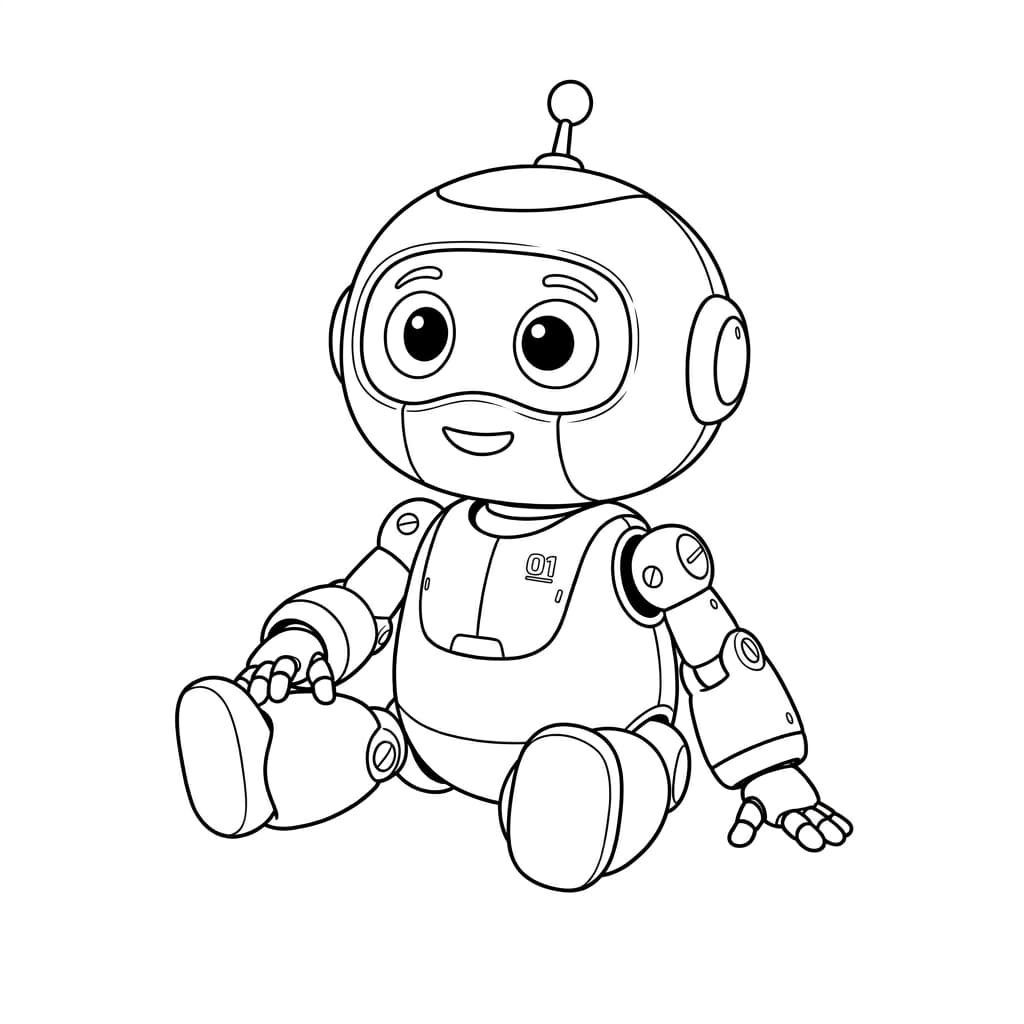
Quick Answer
The easiest way to turn an image into a coloring page
To turn an image into a coloring page, upload a clear source image, choose a coloring page or outline style, then review whether the main shapes are easy to color. The best results usually come from simple images with one clear subject, such as a toy, pet, product, portrait, flower, or building.
A coloring page is different from a pencil sketch. Pencil sketches often keep shading and texture. A printable coloring page should remove most shading, keep clean outlines, and leave enough white space for crayons, markers, or colored pencils.

Before You Upload
What makes a good image for a coloring page?
The source image matters more than most people expect. A strong image gives the converter clear edges to preserve. A cluttered image forces the result to include background lines, tiny textures, and shadows that make the page harder to color.
Before converting, look at the image as if you were going to trace it by hand. If the subject is easy to separate from the background, the coloring page will usually be cleaner.
- Use one main subject, such as a pet, portrait, toy, flower, building, or product.
- Choose images with bright lighting and visible edges around the subject.
- Avoid heavy shadows, motion blur, low-resolution screenshots, and crowded backgrounds.
- Crop the image before uploading if the subject is small in the frame.
- For kids, choose bigger shapes and fewer tiny details.
Workflow
Step-by-step: create a printable coloring page from an image
You do not need drawing software to make a usable coloring page. The main job is to choose the right style, inspect the result, and make one or two simple decisions before saving it.
Upload a clear image
Start with the highest-quality version you have. If the image is dark or busy, crop it so the main subject fills more of the frame.
Choose the coloring page style
Use a coloring page or clean outline style when you want printable white space. Use pencil sketch only when you want shaded artwork rather than a coloring sheet.
Review the outlines
Check whether the big shapes are clear: eyes, face, paws, petals, windows, product edges, or other key details. If the page looks noisy, try a simpler crop or a brighter source image.
Download and test print
Open the result at the size you plan to print. Thin lines can disappear on paper, while very dense lines can make the page feel heavy.
Troubleshooting
How to fix messy or muddy coloring page results
A messy result usually means the source image contains too many competing details. The converter is trying to preserve what it sees, but not every detail belongs on a coloring sheet.
The fastest fix is not always another setting. Often, the best fix is a cleaner crop, a brighter source image, or a different style choice.
- If the background creates too many lines, crop closer to the subject.
- If faces look too detailed, use a larger portrait crop with better lighting.
- If fur, grass, or fabric texture becomes noisy, pick a simpler image or use a broader outline style.
- If the result is too dark for printing, choose coloring page instead of pencil sketch.
- If small objects disappear, use a higher-resolution image or a closer crop.
Use Cases
Good uses for image-to-coloring-page pages
Custom coloring pages work best when the image has personal meaning. A generic coloring book already has flowers, animals, and buildings. The reason to convert your own image is to make something specific: your dog, your classroom mascot, your house, a travel memory, or a product mockup.
For classroom or family use, keep the final page simple. Younger kids often prefer broad shapes. Older kids and adults can handle more detailed line art.
- Pet coloring pages for kids, gifts, or memorial keepsakes.
- Portrait outlines for parties, classrooms, and family activities.
- Travel scenes turned into printable vacation coloring sheets.
- Product or object outlines for craft projects and packaging mockups.
- Flower, plant, and garden images converted into relaxing line art pages.
FAQ
Image to coloring page FAQ
These are the questions people usually ask before converting their first image into a printable outline.
Can any image be turned into a coloring page?
Most images can be converted, but not every image will make a good coloring page. Clear subjects, simple backgrounds, and strong lighting usually create cleaner outlines.
What is the difference between a pencil sketch and a coloring page?
A pencil sketch keeps more shading, texture, and drawing-like tone. A coloring page should keep outlines and remove most shaded areas so there is room to color.
Can I print the coloring page after converting it?
Yes. Check the result at the size you plan to print first. If the lines look too dense or too thin, try a simpler image or a different crop.
How do I make the outlines cleaner?
Use a brighter image, crop closer to the subject, avoid cluttered backgrounds, and choose a coloring page or clean line art style instead of a shaded sketch style.
Do I need design software?
No. A browser-based image to coloring page workflow is enough for most personal, classroom, and craft use cases.
Try your own image
Upload a clear portrait, pet, object, or scene and compare the coloring-page result with the original image.
Create a coloring page